Overview
Include a brief overview of the help doc
Part 1: Accessing the Tasks List View
- Navigate to Contacts > Tasks from the main menu.
- Explore the enhanced view with filtering, sorting, and bulk actions available at the top of the list.

Part 2: Creating a new task
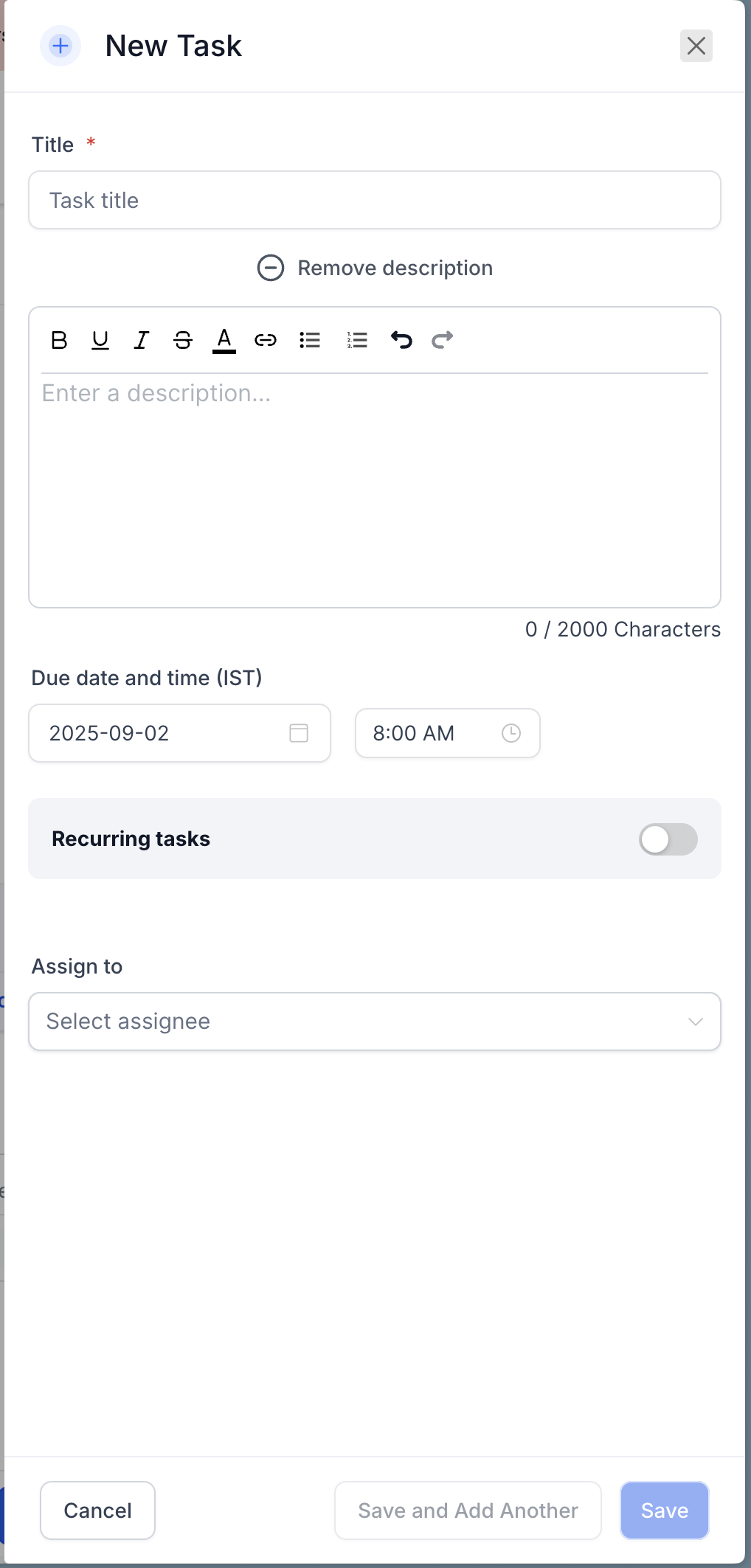
- Click + Add Task in the top-right corner.
- Fill in the following fields:
- Title: Add a brief description of the task.
- Description (optional): Provide additional details about the task. Add rich text like bold, colored text, URLs.
- Due Date and Time: Set a deadline for the task.
- Recurring Task (optional): Toggle on to create a task that repeats based on a custom schedule.
- Contact (optional): Assign the task to a specific contact.
- Assignee (optional): Assign the task to a team member.
- Click Save to save and move to edit flow or Save and Add Another to continue creating tasks.
Part 3: Managing Tasks
- Edit Fields: Use the pencil icon in the Actions column or click on the title of the task to modify task details.
- Delete Tasks: Select a task and click Delete. Deleted tasks can be restored within two months.
- Bulk Actions: Select multiple tasks and perform bulk actions such as marking tasks as done or deleting them.

- Viewing contact-less tasks: Workflows can create tasks without a contact. These display as standalone tasks in the Tasks list. Use filters to quickly find and work them.